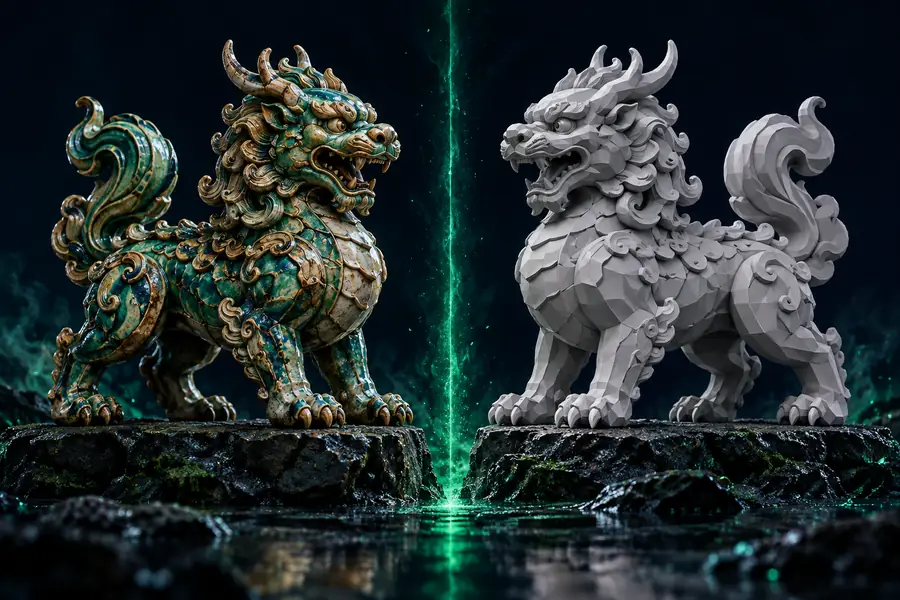
GLB to STL with texture is a capability-specific path, not simply the general converter with a texture switch. It helps you understand which surface information can accompany the mesh and which details must be handled separately.
This entry point vs the general one
Choose the route that matches the job. The comparison is less about a different file extension and more about whether you need to inspect surface appearance before producing an STL mesh.
3D printing beginner
You have a GLB asset from a modeling or scanning workflow and want to know whether its visible surface details matter for the next step.
The [general GLB to STL route](/glb-to-stl-free) gives you a simpler mesh-first path when color and materials are not part of the result you need.
These related paths help you compare output goals before choosing a conversion workflow.
How to start
A reliable GLB to STL with texture workflow begins by deciding whether the texture is evidence for inspection or a requirement for the final physical output.
1
Check the source asset
Confirm that the GLB opens as expected and note whether the appearance comes from embedded images, material settings, vertex colors, or geometry itself.
2
Choose the output goal
Use the texture-aware route when surface appearance affects your decision. If you only need watertight geometry, a standard GLB to STL conversion may be enough.
3
Inspect before downstream use
Review the converted mesh for scale, missing surfaces, thin areas, and visual changes. Treat the STL as geometry-first unless your receiving tool documents support for extra appearance data.
Limits
A texture-aware conversion can clarify the handoff, but it cannot change what the STL format is designed to carry.
STL is geometry-first
STL stores triangular surface geometry and does not natively preserve a conventional image texture, UV layout, or full material graph.
WorkaroundKeep the original GLB and its texture files alongside the STL for review, rendering, or later editing.
Visual detail may not become shape
A color pattern or bump image can look detailed without adding corresponding relief to the mesh. The visible texture may therefore disappear from the physical surface.
WorkaroundModel important relief into the geometry before export, or use a downstream process that supports texture-to-height conversion.
Materials are not a fabrication guarantee
A successful GLB to STL with texture handoff does not prove that a printer, slicer, or fabrication service will reproduce color or material appearance.
WorkaroundValidate the STL in the target slicer and confirm its appearance requirements separately before fabrication.
Scene complexity can affect the mesh
Multiple objects, hidden parts, non-manifold areas, or very dense geometry can produce an STL that needs cleanup even when the source looks correct.
WorkaroundInspect object selection, normals, scale, and watertightness before treating the export as production-ready.
What changes in the result
Textured GLB source
STL mesh handoff
Appearance and geometry are not the same payload.
The format facts behind the split
These numbers explain why a texture-aware route needs a careful handoff rather than a promise that every visible detail will survive.
1GLB input and STL output in the core conversion
2formats
2STL represents a three-dimensional surface mesh
3dimensions
3Conventional STL has no native image-texture field
0texture maps
Keep the source, then test the mesh
Use the texture-aware GLB to STL path when appearance helps you judge the conversion, but keep the original GLB as the reference asset. Start the handoff, inspect the resulting geometry, and verify the output in the tool that will receive it next.
Usually, no. STL is primarily a triangular geometry format and does not natively store a conventional image texture or UV layout. Keep the original GLB and texture assets if the appearance needs to remain available.
The source texture may describe color or material appearance rather than physical shape. Because STL focuses on geometry, those visual details may not appear in the exported mesh unless they were modeled into the surface itself.
It can be suitable when the goal is a printable mesh and the texture is used for inspection or reference. Check the STL for scale, normals, thin surfaces, non-manifold regions, and watertightness in the target slicer before printing.
Keep it with any linked texture images and material information. The GLB remains the better reference for appearance, while the STL is the geometry-focused handoff for tools that accept that format.
Not automatically just because the GLB contains a texture. Turning an image into physical relief requires a separate texture-to-height or modeling step, followed by mesh inspection before STL export.