Fabrication teams
You need a surface mesh for slicing, inspection, or machining preparation.
Use STL when the downstream application only needs triangles and scale can be checked separately.
glb to 3mfFormat conversion
GLTF carries a scene, materials, and animation data; STL carries a triangulated surface. This guide shows how to move between them and check the resulting mesh.

Visual comparison
The same object can look similar after conversion, while the file underneath behaves very differently. Use the slider to compare the source scene with a triangle-only result.

 GLTF source
STL result
GLTF source
STL result
Drag the divider to inspect how scene information becomes a single surface mesh.
Format anatomy
GLTF is designed for efficient scene delivery, while STL is intentionally narrow. This side-by-side view highlights which attributes survive as geometry and which do not.
GLTF
STL
GLTF
Interactive 3D scenes and asset delivery
STL
Surface geometry for fabrication and basic mesh exchange
GLTF
Meshes with vertices, normals, indices, and primitives
STL
Triangular facets with vertex coordinates and normals
GLTF
PBR materials, textures, and material assignments
STL
Not stored in the standard STL surface description
GLTF
Nodes, parent-child transforms, and multiple objects
STL
Usually flattened into one or more mesh bodies
GLTF
Animation channels and skinning may be included
STL
Not represented
GLTF
May be included as scene objects
STL
Not represented
GLTF
Transforms and scene conventions may be present
STL
Unit interpretation depends on the receiving software
GLTF
Can bundle binary data and textures in one asset
STL
Stores mesh surface data without the original asset package
Result examples
These examples focus on the visible mesh result: a surface that can be inspected, repaired, and sent to another tool after non-geometric scene data has been removed.
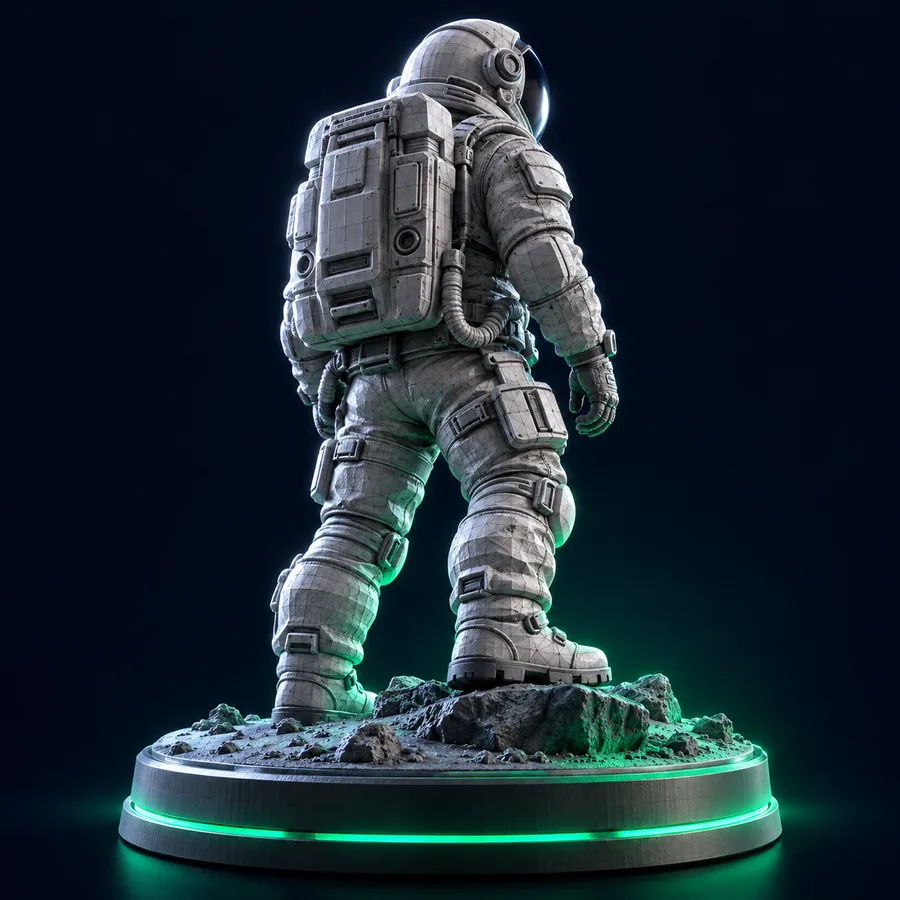 1
Geometry
1
Geometry
 2
Detail
2
Detail
 3
Sculpt
3
Sculpt
Choose a route
The best format depends on what happens after conversion. Choose STL for a surface-focused workflow, or compare nearby routes when you need scene data or a newer print-oriented container.
You need a surface mesh for slicing, inspection, or machining preparation.
Use STL when the downstream application only needs triangles and scale can be checked separately.
glb to 3mfYou are comparing a scene-oriented source with a fabrication-oriented destination.
Review how a packaged GLB asset differs from a 3MF output before choosing a production route.
glb to 3mfYour source is not GLTF but an interchange asset from an older modeling pipeline.
The fbx to stl route explains the comparable mesh-first handoff for FBX sources.
fbx to stlConversion examples
A specific request helps preserve the intent of the conversion. State the target use, desired scale, and whether separate shells should remain separate.
Architecture
1
Convert the architectural GLTF scene into a clean STL surface, preserve the exterior silhouette, and keep separate building shells distinct.
Mechanical
2
Turn this mechanical GLTF model into a watertight STL mesh with enough triangles for curved edges and consistent real-world scale.
Organic
3
Convert the sculpted GLTF asset to an STL mesh for inspection, retaining the visible form while removing materials, lights, and animation data.
Adapt each brief by naming the intended use, scale convention, shell structure, and acceptable level of surface detail.
Three checks
A reliable conversion is more than changing the extension. Confirm the source, define the mesh outcome, and inspect the exported surface before sending it onward.
Check whether the GLTF contains multiple nodes, hidden parts, transforms, textures, or animation that will not belong in the STL.
Specify whether you need one body or separate shells, what scale the result should use, and how much surface detail is appropriate.
Open the STL in a mesh viewer or slicer, then check orientation, dimensions, normals, gaps, and unexpected disconnected pieces.
Final inspection
Before treating the result as production-ready, inspect it in the software that will receive it. Confirm that the object has the expected orientation and dimensions, that curved areas are not visibly faceted beyond tolerance, and that no important parts disappeared when the scene was flattened. A slicer or mesh inspector can also reveal open edges, inverted normals, overlapping shells, and disconnected fragments. If the result looks wrong, return to the source hierarchy and transforms rather than assuming the file extension caused the issue.
Start a conversionCommon questions
GLTF can describe a complete 3D scene with meshes, materials, textures, nodes, transforms, and animation. STL is primarily a triangle-based surface format, so it is simpler and more suitable when the receiving workflow only needs geometry.
No. Standard STL does not carry the original GLTF material, texture, lighting, or animation data. The conversion preserves the surface geometry, while appearance information must be handled separately if the downstream workflow needs it.
It can, depending on the conversion workflow and the source scene. Multiple objects may be flattened into one mesh, or separate shells may remain distinguishable; specify the desired structure and verify the result afterward.
Open it in a mesh viewer, CAD tool, or slicer and check dimensions, orientation, normals, open edges, disconnected fragments, and visible holes. A successful export should match the intended shape and scale, not merely open without an error.
GLTF may rely on textures, materials, smoothing, scene transforms, or hidden nodes to create its appearance. STL retains only the exported triangle surface, so missing scene data, incorrect scale, low tessellation, or unhandled transforms can change the result.