

Format guide

what is glb to stl online? A practical definition

what is glb to stl online is the process of turning a GLB 3D scene into an STL mesh through a browser-based conversion workflow. This guide explains what changes, what remains, and where the result fits.

Abstract 3D scene illustrating a model conversion workflow

One-line definition

what is glb to stl online can be answered simply: it is a file-format conversion from a scene-oriented GLB asset to a mesh-oriented STL file.

5 min read

How GLB to STL works

The conversion is best understood as a change from a complete 3D scene into a single surface mesh. The model may look similar, but the file carries less information afterward.

Detailed 3D asset representing a GLB scene 01

1

The GLB scene is read

A GLB file can contain one or more meshes, node transforms, materials, textures, cameras, and animation data. An online GLB to STL workflow first interprets the scene and identifies the visible geometry that can be represented as a triangle surface.

  • Geometry is separated from scene metadata
  • Transforms may be applied to the exported mesh
  • Only STL-compatible surface data moves forward
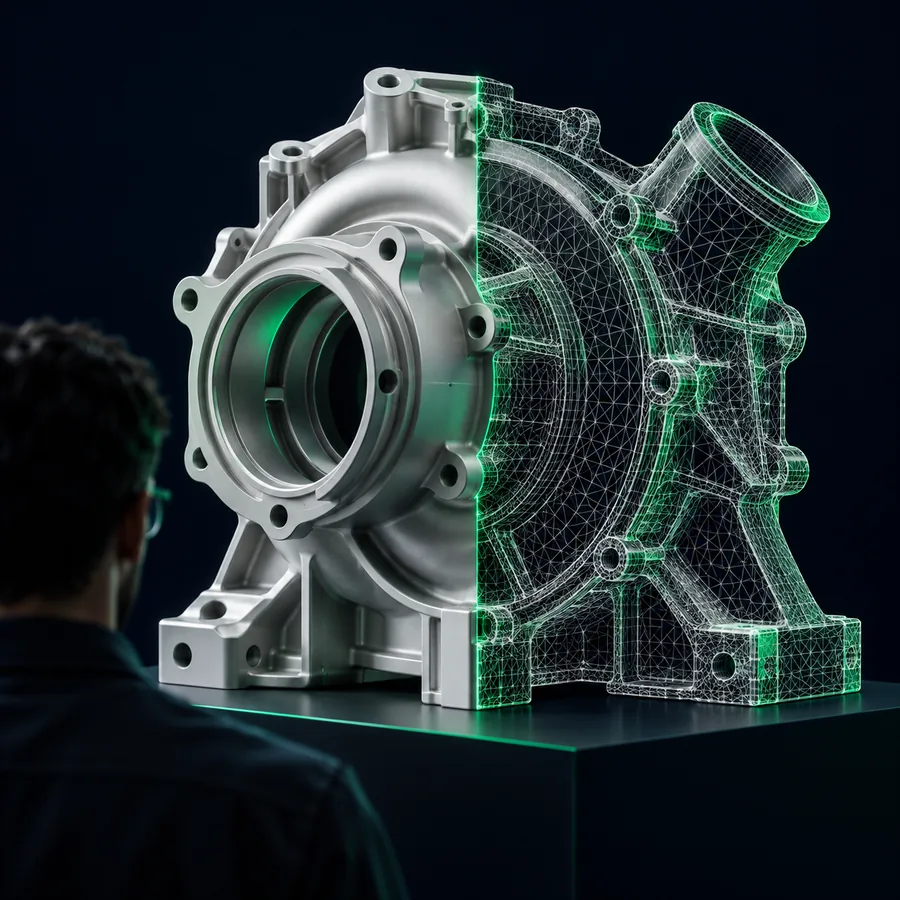
Triangulated surface mesh representing an STL export 02

2

The surface becomes an STL mesh

The selected geometry is triangulated and written as STL facets. This GLB to STL step describes the outside surface rather than the full scene, so materials, colors, texture images, and animation are not part of the resulting STL.

  • Triangles describe the model boundary
  • The output can be binary or text STL
  • Scale and orientation should be checked afterward

How the online conversion works

A typical GLB to STL process has three practical stages. The exact controls vary by tool, but the reasoning stays the same.

  1. 1

    Select the GLB asset

    Choose the GLB file and confirm that it contains the intended object, not just a camera, empty node, or hidden variant.

  2. 2

    Convert the mesh

    The online converter reads the scene, applies its geometry settings, triangulates the surface, and writes the STL representation.

  3. 3

    Inspect the result

    Open the STL in a viewer or downstream application and check scale, orientation, watertightness, thin walls, and missing parts.

GLB to STL is useful when a scene asset needs to enter a mesh-based workflow. It is not limited to one profession, but the reason for converting is usually practical rather than visual.

Before and after conversion

The visual silhouette can remain recognizable while the underlying file meaning changes. The comparison below represents the difference between a scene asset and a surface-only export.

  • Before: GLB scene
  • After: STL mesh

The shape may remain; scene data does not.

GLB scene shown before conversion
STL mesh shown after conversion

What GLB to STL can and cannot do

A GLB to STL conversion is deliberately narrow. Knowing its limits prevents surprises when a file moves from a presentation or real-time workflow into manufacturing, slicing, or mesh inspection.

  • It cannot preserve textures

    STL has no standard channel for texture images or normal maps, so a textured GLB may become a plain shaded surface.

    WorkaroundKeep the original GLB for appearance, and use the STL only where geometry is the requirement.

  • It cannot preserve animation

    Rigging, keyframes, cameras, and scene animation are outside the STL format.

    WorkaroundExport a static frame or keep the animated GLB for interactive use.

  • It cannot guarantee a printable mesh

    An STL file can still contain holes, self-intersections, inverted normals, separate shells, or walls that are too thin.

    WorkaroundRun a mesh repair and inspection step before slicing or fabrication.

  • It cannot infer your intended scale

    GLB scenes and STL workflows may use different unit assumptions, so the output can appear too large or too small.

    WorkaroundVerify dimensions in the destination application and set the intended units before production.

Use GLB to STL in your workflow

If the goal is a physical part, a reference mesh, or a downstream tool that accepts STL, GLB to STL can be a useful handoff. Start with the cleanest source scene, identify the object you need, and treat the exported STL as a new technical asset rather than a perfect copy of the original file. For a different printer-oriented output, compare the GLB to 3MF route before committing to STL. If your source is glTF, the glTF to STL workflow addresses that input directly. When appearance matters, keep the original textured GLB beside the mesh export.

Open 3D studio
  • Keep the original GLB as the appearance reference.
  • Check dimensions before sending the STL downstream.
  • Use mesh repair when the output will be fabricated.

GLB to STL online FAQ

It is used to turn a GLB scene asset into an STL surface mesh for applications that accept STL geometry. Common examples include mesh inspection, basic fabrication preparation, and workflows where materials or animation are no longer needed.

The main surface shape can remain recognizable when the source geometry is exported correctly. However, scene transforms, hidden objects, scale settings, and unsupported parts can affect the result, so the STL should be inspected after conversion.

Usually not. STL describes triangles and does not normally carry the texture images, material assignments, or color information stored in a GLB, so the exported model may appear as a plain mesh.

Not automatically. The STL may need checks for watertightness, normals, intersecting shells, wall thickness, orientation, and scale before it is suitable for slicing or fabrication.

An online workflow can be convenient when the task is a straightforward format handoff and a browser-based tool fits the project. Desktop software may still be preferable when you need detailed scene selection, repair, unit control, or batch processing.

Start converting
Start converting